


Table of Contents


An AI agent is a program that understands what a user is asking for in plain language and takes real actions to complete it—not just answering with text. When someone says “add eggs to my shopping list,” an AI agent should add the item to an actual shopping list. It should not just tell the user how to do it themselves.
For Android developers, that kind of capability raises a practical question: how does an AI agent reach inside an app and do something? The app’s buttons and menus were designed for human fingers, not for AI programs.
That is the exact problem Android AppFunctions and Android MCP are built to solve. Together, they give developers a structured, controlled way to let AI agents interact with specific parts of an app without opening the whole app to outside access.
This guide explains both technologies from the ground up. It covers how they work, what developers need before starting, how to implement them step by step, and what to watch for when testing and securing the integration.
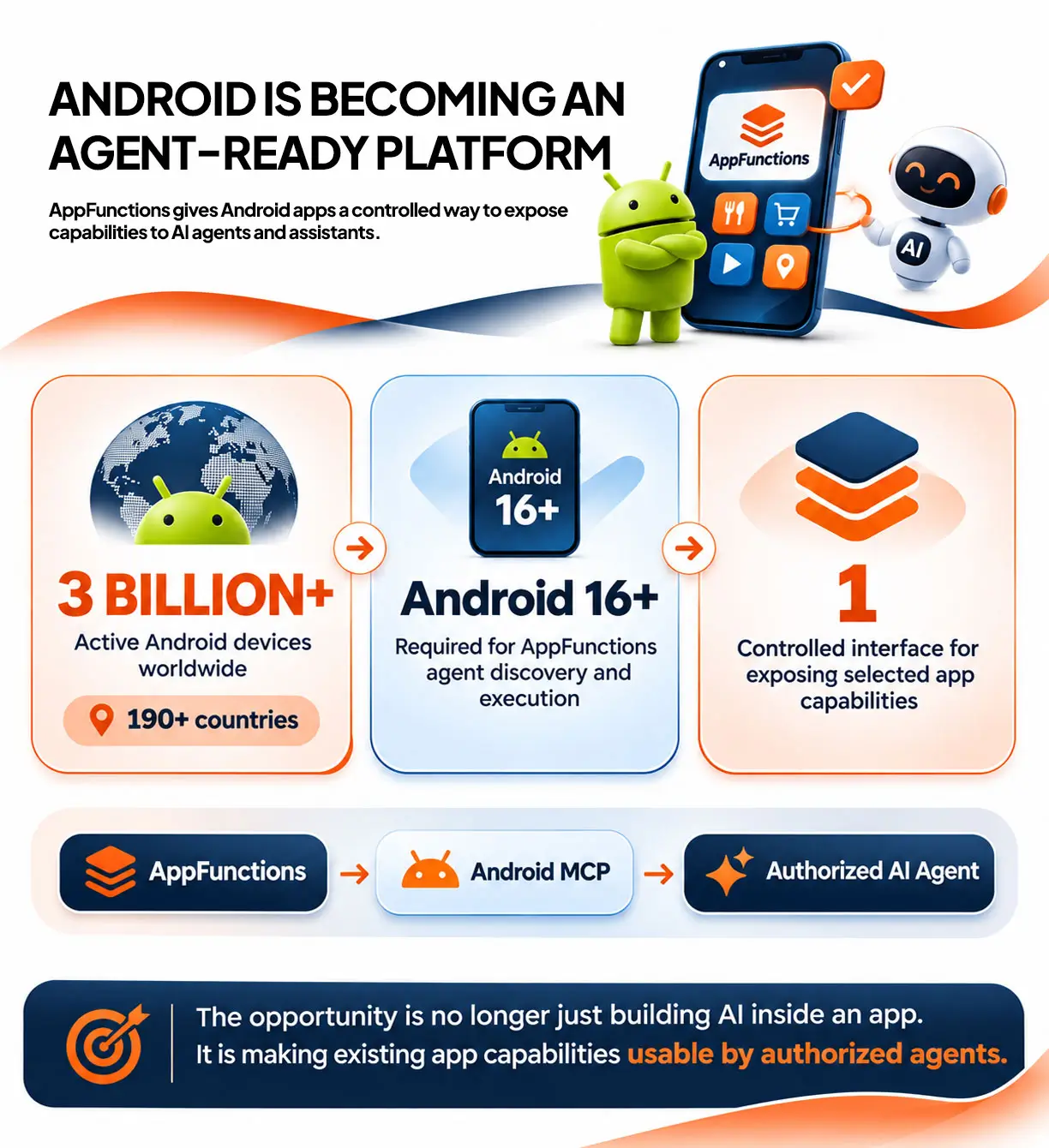
What Are Android AppFunctions and Android MCP?
An AppFunction is a specific task inside an Android app that a developer has deliberately opened up to AI agents. Every app is built from dozens of individual functions—one that saves a note, one that creates a calendar entry, one that marks a task as complete. By default, all of those are locked inside the app and inaccessible to anything outside it.
An AppFunction is when a developer takes one of those existing functions and opens it up to an authorized AI agent. That comes with three decisions:
- What information the agent must send to trigger it
- What result comes back after it runs
- Which agents are permitted to call it in the first place
Once those details are in place, the Android system stores a structured description of the function when the app is installed. That description covers its name, what it does, and what inputs it expects. This description lives at the system level, not buried inside the app itself. That means an authorized agent can read it and understand what the function does. It can then call it on the user’s behalf without the user ever needing to open the app manually.
The AppFunctions Jetpack library handles registration, annotation processing, and the runtime plumbing that connects agent calls to actual app logic. The developer does not need to build that infrastructure from scratch.
One important clarification is that AppFunctions are not AI features inside the app. They are structured doors that outside AI systems can knock on when permitted. A task management app, for example, could expose a "Create Task" function. If a user tells their AI assistant to add an item to their list, the assistant calls that function directly. The app then executes the action; it doesn't need a separate AI layer.
What Is Android MCP?
Model Context Protocol Android is Google's implementation of the Model Context Protocol (MCP) at the operating system level. MCP is an open standard that defines how AI models communicate with tools and data sources. Android's version of it brings that communication layer onto the device itself.
On Android, MCP runs as a local server that surfaces registered AppFunctions to authorized agents as callable tools. The agent operating in the cloud—or on-device using something like Gemini Nano—sees a structured list of available functions, selects the right one, and passes a call through the MCP channel.
A key characteristic of this setup is that the agent reasons remotely, but the function executes locally. Data processed by the function never leaves the device. The agent only receives the return value.
How AppFunctions and Android MCP Work Together
AppFunctions and Android MCP serve different roles, but neither one delivers value without the other. AppFunctions define what an agent can do inside a specific app. The Android MCP server is the channel through which agents discover and invoke those functions.
Here is how they interact at a high level:
- Developers register AppFunctions using the Jetpack library. Each function carries structured metadata.
- The Android MCP server reads the registry and builds a list of tools available to authorized agents.
- When a user makes a request, the agent reviews what functions are available and selects the appropriate one.
- Android executes the function inside the app. The agent does not run the logic itself.
- The result passes back through the MCP layer to the agent, which communicates the outcome to the user.
The two technologies are complementary by design. One provides structure; the other provides the channel.
Android App Functions vs. Traditional AI Chatbot Integration
There are two distinct ways in which a developer can bring AI capabilities into an Android app. The first is building AI directly inside the app. The second is exposing the app’s features to an external AI agent. Both approaches involve AI, but they work very differently and they produce very different experiences for the user. Understanding the gap between them makes it easier to see why AppFunctions exist in the first place.
Adding an AI Chatbot Inside an Android App
The traditional model of AI agent integration in Android involved embedding a conversational AI layer directly into an app. The developer integrated an AI SDK (Software Development Kit), designed a chat interface, and routed user messages through a backend that responded with AI-generated answers.
That approach carries several persistent drawbacks:
- Users must open a specific app to access its AI features. The assistant only knows about one app at a time.
- The AI inside one app has no visibility into features or data from other apps.
- Each app carries its own AI layer, adding development complexity and device resource usage.
- When users switch between apps mid-task, whatever the AI was doing gets interrupted.
This model works for narrow, contained use cases. When users expect their AI assistant to coordinate across their entire phone for booking, reminding, creating, and sending, the per-app chatbot approach breaks down.
Making Android App Features Available to External Agents
AppFunctions invert the traditional model. Instead of pulling AI into the app, the developer pushes selected app capabilities outward. An authorized external agent—currently Gemini on Android is the primary example—can then invoke those capabilities during broader task execution.
The benefits for teams pursuing Android AI agent development include the following:
- Users interact with one assistant, not a collection of separate app chatbots.
- The app does not need to build or host its own AI model.
- Developers retain precise control over which features agents can access and under what conditions.
- Function logic and data stay inside the app's own process. So, agents cannot poke around inside the app arbitrarily.
- Developers do not need to rewrite existing code. AppFunctions simply add a label and a description to an already-built action, making it visible and callable by agents.
This model represents a more sustainable architecture for agentic Android apps as the range of agent capabilities continues to grow.
How Android AI Agents Discover and Execute App Functions
Understanding exactly how a user request travels from an AI agent all the way to an app function helps developers decide which functions to expose and how to describe them accurately.
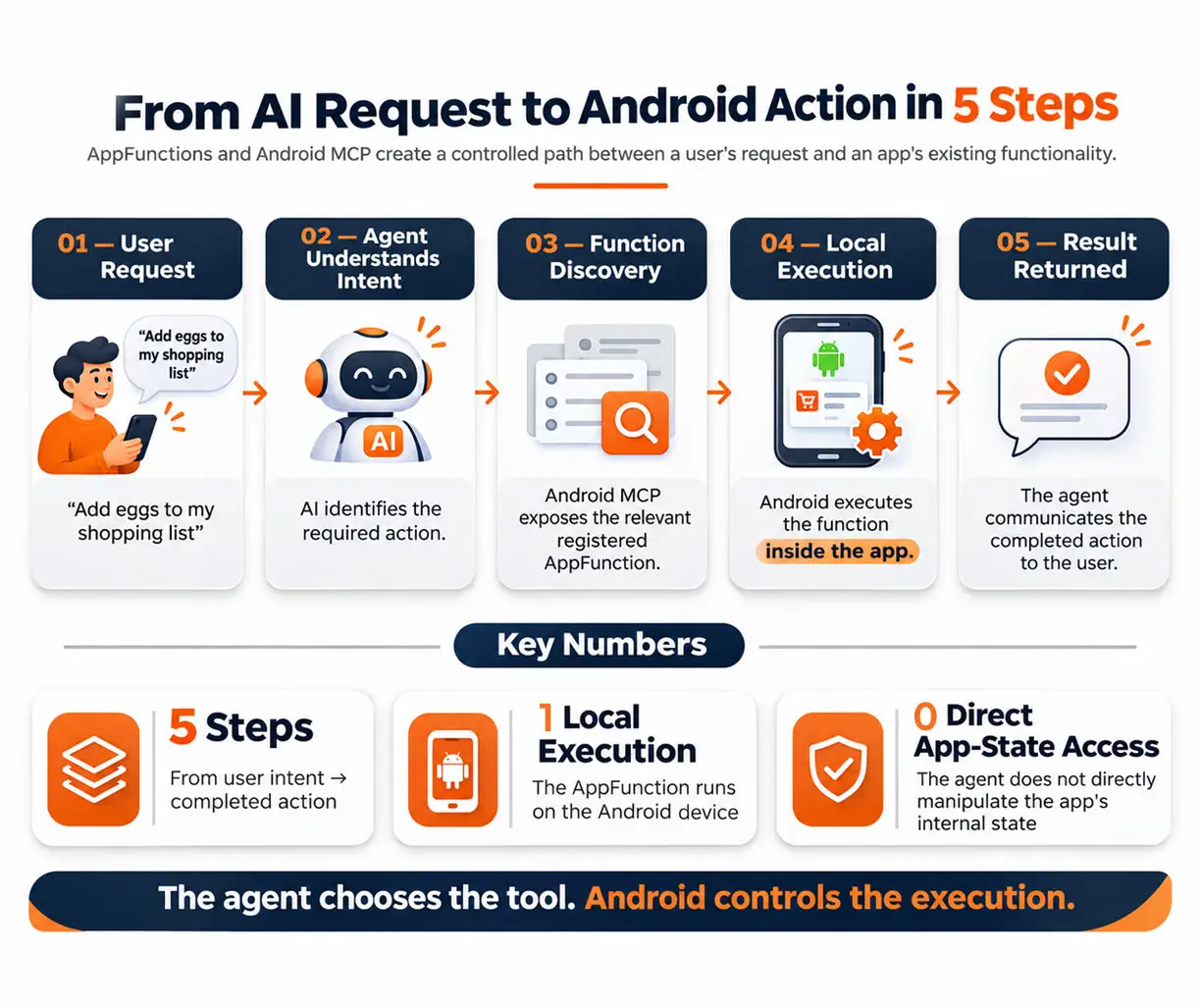
Step 1 – Developers Expose Selected App Capabilities
The developer decides which app features should be reachable by agents. Not every function belongs here. The candidate list should include actions that make sense to trigger from an external context. This includes creating records, adding items, and triggering workflows. The developer marks selected functions using the AppFunctions SDK annotations.
Step 2 – Function Metadata Becomes Discoverable
Once annotated, each function's metadata, including name, description, parameters, and return type, is registered with the Android system. The Android MCP server reads this registry to assemble a list of tools that authorized agents can query.
The quality of that metadata determines how well an agent can decide when and how to use the function. A vague description leads to missed calls or incorrect calls. On the other hand, clear, precise descriptions are worth the extra time they take to write.
Step 3 – An Authorized Agent Selects a Function
The user makes a request through their AI assistant. The agent reviews the available functions and selects the one that best matches the intent. Authorization checks happen at this stage. Not every agent can call every registered function, as access is controlled through the app's manifest configuration.
Step 4 – Android Executes the Requested Function
The Android system handles execution. The agent passes the call and its parameters through the MCP channel. Android invokes the actual function inside the app process. The agent never touches the app's internal state directly.
Step 5 – The Agent Communicates the Result
After execution completes, the result travels back through the MCP channel to the agent. The agent translates that result into natural language and tells the user what happened. Perhaps a task was created, a file was saved, or a contact was updated.
What Developers Need Before Implementing Android AppFunctions
AppFunctions require Android 16 (API level 36) or higher for full agent discovery and execution. The Jetpack library supports backward-compatible code structures, but end-to-end agent integration depends on a device running Android 16.
Teams approaching Android AI integration with AppFunctions will need:
- Android Studio Ladybug or a later version for full AppFunctions tooling support.
- Kotlin as the primary development language. AppFunctions are Kotlin-first by design.
- The androidx.appfunctions Jetpack library added as a project dependency.
- Kotlin Symbol Processing (KSP) configured correctly, since the annotation processor generates function metadata at compile time.
- A physical device or emulator running Android 16 for integration testing.
- Access to an authorized agent environment—typically Gemini on Android—for live discovery testing.
Which Features Make Good AppFunctions?
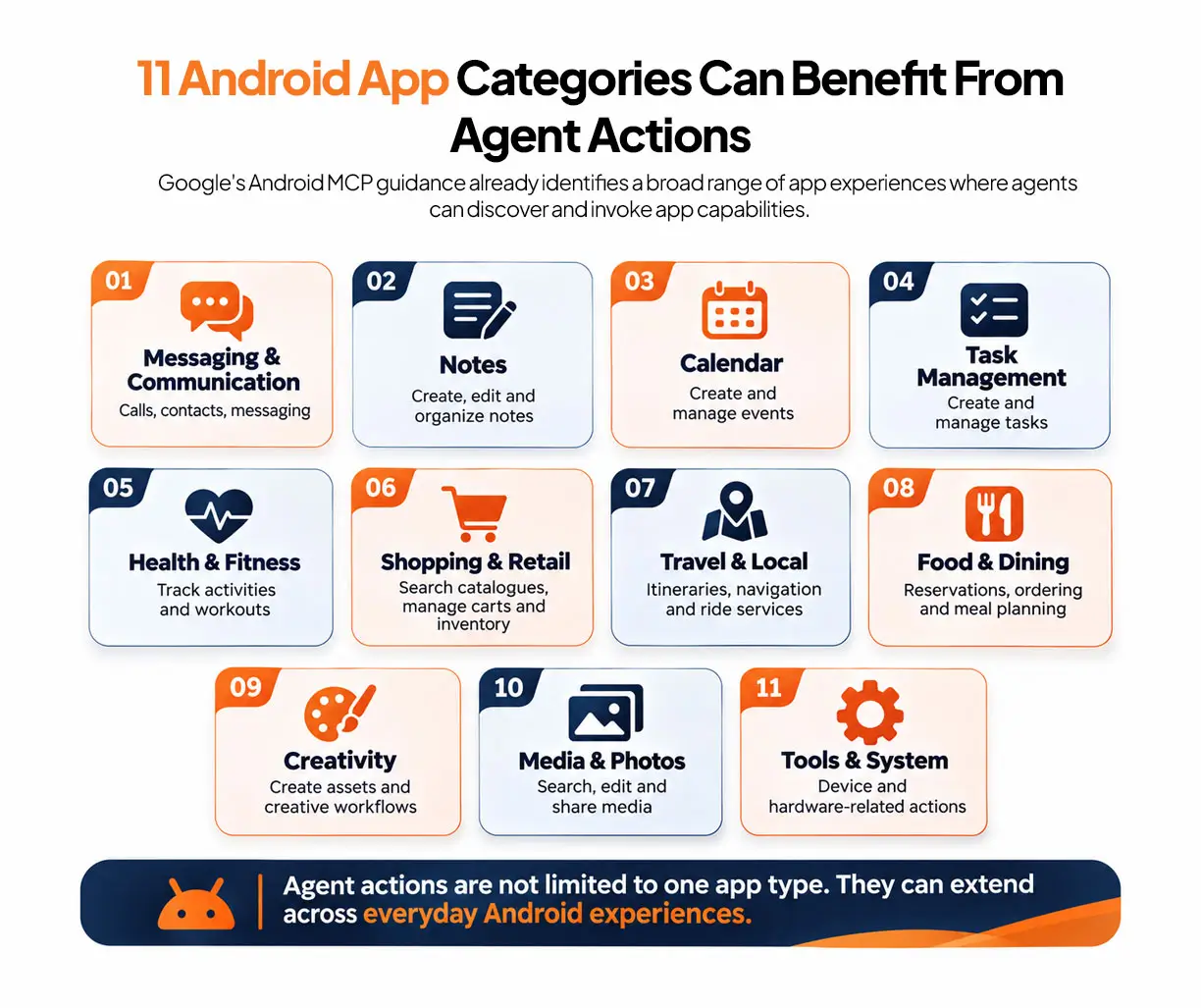
Not every app feature is worth exposing. The best candidates tend to share a few qualities:
- Clear action with a predictable outcome: Creating a task, adding a contact, setting a reminder—these are good examples. Functions with unpredictable side effects or deeply branching logic are harder for agents to use reliably.
- Narrow scope: A function that does one thing cleanly is easier to describe, easier to authorize, and easier to test than a broad function that branches into many paths.
- Appropriate risk level: Functions that delete data, send messages, or trigger purchases need extra access controls and user confirmation steps. They are not necessarily off-limits, but they require more care.
- Genuine cross-context utility: If an agent might plausibly need a function while helping with something else, it belongs in the AppFunctions set. If a function only makes sense when the app is already open and the user is actively in it, it probably does not.
How to Integrate Android AppFunctions in Kotlin
This section walks through a practical implementation using a task management app. The goal is to expose a task-creation function so an authorized AI agent can create tasks on the user's behalf.
Step 1 – Create or Identify the Existing Task-Creation Function
Most task apps already have a function that accepts a title and due date and writes a new task to storage. That existing function becomes the target. The AppFunctions layer wraps around it. No rewriting of core logic is required.
Step 2 – Add the AppFunctions Dependencies
In the app's build configuration file, the Jetpack AppFunctions library is added alongside the KSP (Kotlin Symbol Processing ) compiler dependency. The compiler dependency is what generates function metadata at build time. This is how the AppFunctions Kotlin framework registers functions without requiring runtime reflection. KSP must be applied as a plugin at the project level before this step will work correctly.
Step 3 – Expose the Task Operation as an AppFunction
The developer creates an AppFunction class and annotates the relevant method. The @AppFunction annotation tells the framework that the method should be registered as a callable tool. Each annotated method also receives an AppFunctionContext parameter, which carries information about the calling agent and the execution environment. Developers inspect that context to verify who is calling before proceeding with any logic.
Step 4 – Describe the Function Clearly for AI Agents
The description attached to an AppFunction directly affects how well an agent understands when and how to use it. This is one of the most important steps in an Android AppFunctions tutorial, and it is frequently underestimated.
Best practices for descriptions:
- Write from the agent's perspective. What does this function accomplish for the user?
- Describe each parameter clearly, including what type it expects, what format it accepts, and whether it is optional.
- Describe the return value so the agent knows how to interpret the result.
A vague description like "handles task creation" leaves the agent guessing. A specific one reduces incorrect calls.
Step 5 – Configure Access and Permissions
The developer declares which agents are permitted to call the function inside the app's manifest. A metadata block in the manifest points to an XML configuration file. That config file specifies which agent packages are authorized callers and whether user confirmation is required before execution. Getting this configuration right is what separates controlled agent access from open access.
Step 6 – Execute and Test the AppFunction
One of the more practical things the Jetpack library offers at this stage is a local testing API. What this means is that the function can be tested without needing a live Gemini environment set up — which, for most developers, is not readily available during early development. This local tool simulates what an agent call would actually look like, making it the right place to catch problems early. A successful test at this stage confirms three things: the function registered correctly with the system, it received and processed the input parameters as expected, and it returned a valid result at the end.
Step 7 – Verify the Result in the Android Application
After the test call runs, the developer checks the app's data layer directly. For the task creation example, that means confirming a new task appears in local storage with the correct title and due date. If the data matches what was passed in, the function is ready for testing against a real agent on a device running Android 16.
How to Test and Debug Android AppFunctions
Even well-structured AppFunctions run into issues during development. These are the most common problems and their usual causes.
Function Is Not Registered
When an AppFunction does not appear in the system registry, the first thing to check is KSP configuration. If annotation processing did not run correctly, the function metadata was never generated. A clean rebuild resolves this in most cases.
Also confirm that the target device runs Android 16 or higher. Functions on lower API levels will not appear to agents, regardless of how the code is written.
Agent Cannot Discover the Function
Discovery failures almost always trace back to the manifest configuration. Verify that the metadata block points to the correct XML resource and that the XML file is included in the build output. A missing or malformed config file silently breaks discovery.
The Function Runs but Returns Incorrect Data
This situation usually points to a mismatch between the function's parameter definitions and what the calling agent sends. Cross-check parameter names and types in both the AppFunction definition and the test call. Even a minor naming inconsistency causes the mapping to fail silently.
The Function Works in Testing but Not With Gemini
The local test runner bypasses some authorization checks that Gemini enforces in production. Revisit the manifest access configuration and confirm that Gemini's package is listed in the authorized callers. This step is often missed during early development when testing focuses on logic rather than access control.
Security and Privacy Considerations for Android MCP Integration
Security deserves deliberate attention when app features become agent-accessible. Each exposure decision has real consequences for users.
Expose Only the Functions an Agent Actually Needs
Every registered function increases the surface area available to agents. Teams working on Android MCP integration should register only the minimum set of functions that serves the intended use case. If a function is not genuinely useful to an agent, it should not be registered — even if it appears harmless in isolation.
Validate Inputs and Enforce Authorization
Every function call comes with an AppFunctionContext — essentially a package of information about which agent is making the request. Before the app does anything else, it should check that information and confirm the caller is actually an expected, authorized entity. Just because a call arrives through the MCP channel does not automatically make it trustworthy. Beyond that, standard input validation still applies here — checking value types, enforcing length limits, and verifying that the format matches what the function expects. In short, treat this surface the same way any external-facing API would be treated.
Require Confirmation for Sensitive Actions
Functions that send messages, make purchases, or modify important records carry real risk if an agent misreads a user’s intent. Because of this, adding a confirmation prompt before execution gives the user a chance to review what is about to happen and approve it. Fortunately, the AppFunctions framework supports exactly this — it can pause execution until the user gives the go-ahead. So for anything high-stakes, skipping this step is simply not worth the risk.
Protect Personal and Business Information
Personal data deserves a closer look before deciding what a function should return. A useful question to ask at this stage is: does the agent actually need all of this information to complete the task, or just part of it? In most cases, returning a full record when only an identifier would do the job means unnecessary user data is reaching the agent layer. In other words, data that did not need to leave the app in the first place is now exposed — and that is a problem worth avoiding early.
Understand Local Execution and Cloud-Based Reasoning
Here is something about this Android AI integration architecture that often gets overlooked. The agent does its thinking remotely — that reasoning may happen on a distant server. However, the actual function runs right there on the device. As a result, any data the function touches during execution never leaves the device. What the agent ultimately receives is just the final output value. It never sees the app’s internal state or, for that matter, anything beyond what the function specifically chose to return.
When Should Developers Use AppFunctions Instead of a Remote MCP Server?
Remote MCP servers connect AI agents to backend services over the network. Android AppFunctions connect agents to on-device app features. The right choice depends on where the data and logic actually live.
Android AppFunctions are the right fit when:
- The app's core features are on-device and do not require a network call to execute.
- Data is stored in a local database, file system, or on-device cache.
- Low latency matters. Local execution is faster than a round-trip to a remote server.
- Keeping data on the device is a priority for privacy reasons.
A remote MCP server is the better choice when:
- The app relies on a cloud backend for its core logic.
- The function needs to access data stored on a server.
- The same agent integration must work across multiple platforms, not just Android.
- Authentication against a cloud identity system is part of the flow.
For many production apps, both approaches work in combination. Local AppFunctions handle on-device actions. A remote server handles anything that requires cloud access. The two channels are not mutually exclusive.
Current Limitations and the Future of Agent-Ready Android Apps
AppFunctions remains experimental, with the API surface and supported agent ecosystem still evolving. That means the API surface may change, documentation is still growing, and the ecosystem of authorized agents is currently limited primarily to Gemini on Android.
A few limitations worth knowing about before committing to implementation:
- AppFunctions require Android 16, which limits the addressable user base in the near term as device adoption catches up to the new OS version.
- The set of authorized AI agents is controlled by Google. Third-party agents cannot access AppFunctions without explicit authorization through the platform.
- Complex function flows, such as multi-step operations with branching logic, are harder to describe accurately enough for agents to use reliably across all contexts.
- End-to-end testing against a live agent requires specific hardware and software configurations. Not every development team has that environment ready on day one.
The longer-term direction, however, is clear. As Android 16 adoption grows and the broader Android AI agent development ecosystem matures, AppFunctions will become a standard part of how apps expose capabilities to AI systems. Developers who understand this model early will be in a stronger position as agent-driven interactions become a routine expectation rather than a novelty.
Android AppFunctions and Android MCP give developers a principled way to build toward an agent-driven future without rebuilding their apps from scratch. Rather than adding yet another embedded chatbot, this approach turns existing app features into building blocks that AI assistants can discover, call, and report back on. The implementation path in Kotlin is approachable. The security considerations are manageable with standard engineering discipline. The payoff—having app features reachable by AI agents without redesigning the architecture—is significant. For teams serious about building agentic Android apps, the groundwork is already in place through Jetpack. The standard for how agents interact with Android apps is becoming clearer with each release. Getting familiar with AppFunctions and Android MCP now means less catching up later.
Frequently Asked Questions
1. What are Android AppFunctions?
Put simply, Android AppFunctions are specific app capabilities that developers choose to open up to authorized AI agents through the Jetpack AppFunctions library. Now, this does not mean AI is being built into the app itself — that is worth clarifying upfront. What actually happens is that certain methods inside the app get annotated and structured so external agents can discover and call them. From there, the Android system steps in and handles execution on the app’s behalf.
2. How is Android MCP different from standard MCP?
3. Can any AI agent use Android AppFunctions?
4. Are Android AppFunctions available in Android 16?
5. Can AppFunctions work with an existing Kotlin application?
Request a
Free Quote Today!


